How to transcribe audio to text on iPhone
The short answer
Open Transcribe AI, choose the spoken language, then tap the microphone to record or tap Upload Audio File to import an MP3, WAV or M4A file. The app turns the speech into editable text on your iPhone, with no upload or account, and works in airplane mode. When it finishes, check the text against the audio, then copy, share or export it.
Key takeaways
- You can record in the app or import MP3, WAV and M4A files, including voice memos saved to Files.
- Transcription runs on the iPhone or iPad, works offline and takes roughly as long as the audio.
- Setting the spoken language first is the easiest way to get a cleaner transcript.
- The free version includes 15 transcriptions, up to 5 a day and 15 minutes per file. Batch import and PDF export need Pro.
Step by step
Choose the spoken language
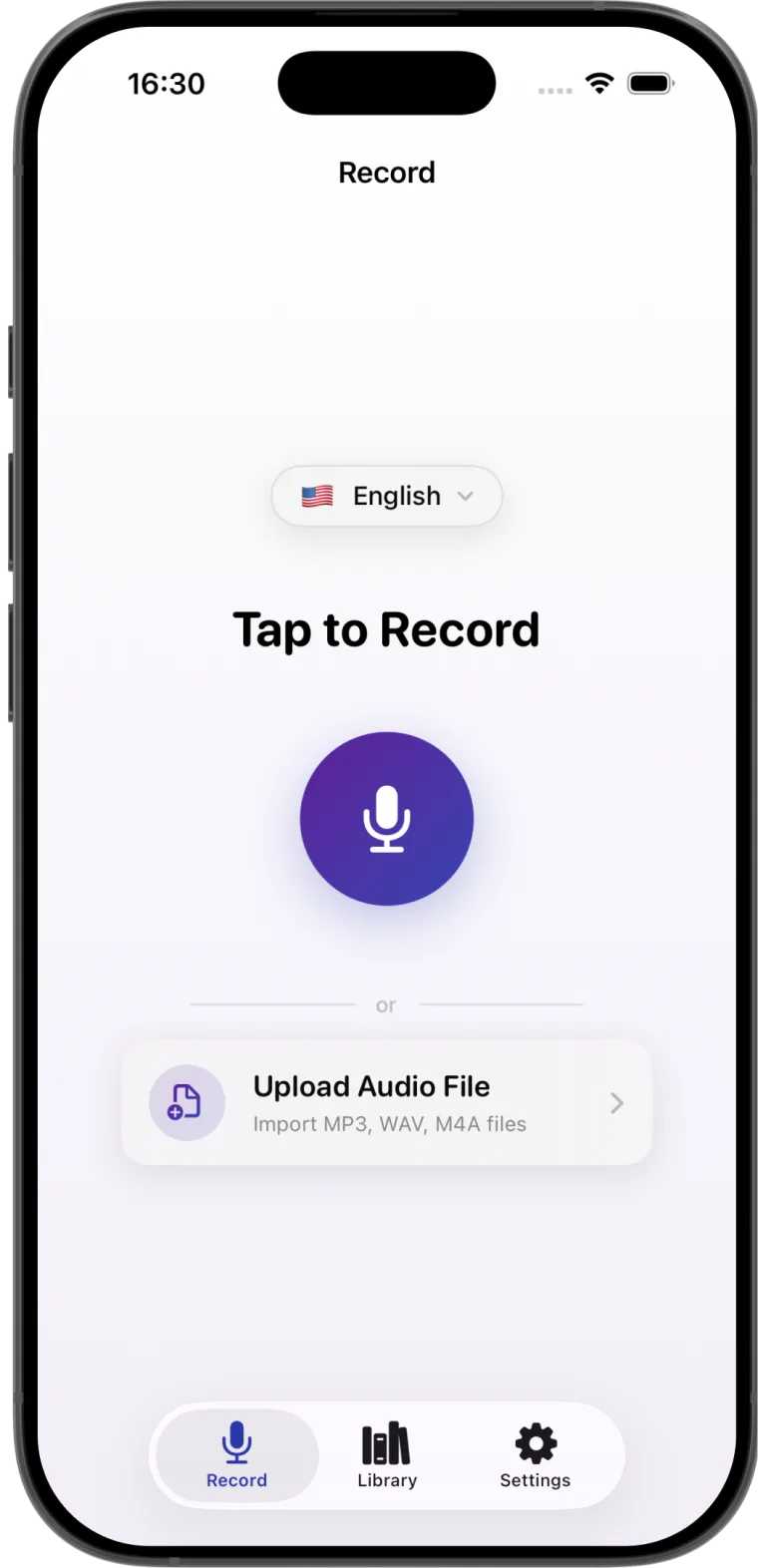
Open Transcribe AI and tap the language pill above the record button. Pick the language spoken in the recording.
Record or import your audio
Tap the microphone to record, or tap Upload Audio File and choose an MP3, WAV or M4A file from Files.
Let it transcribe
Keep the app open while it works. It takes roughly as long as the audio and needs no internet connection.
Check the text
Play the audio beside the transcript and correct names, numbers and anything that looks wrong.
Copy, share or export
Copy the text, send it to another app from the share sheet, or export it as a file.
Transcribe a voice memo
Voice Memos keeps recordings in its own library, so other apps cannot open them directly. Saving a memo to Files creates a standard M4A copy that Transcribe AI can import. Your original stays in Voice Memos.
- In Voice Memos, tap the recording, then tap the More button (three dots).
- Choose Save to Files and pick a folder, such as On My iPhone or iCloud Drive.
- In Transcribe AI, set the language, tap Upload Audio File and select the memo.
If you transcribe memos often, keep one folder in Files for them, so the file is always in the same place when you import it.
Convert MP3, WAV and M4A files to text
Save the file to the Files app from Mail, Safari, Messages or AirDrop, then import it with Upload Audio File. Files in iCloud Drive, Dropbox, Google Drive or OneDrive work when they appear in the Files picker.
| Format | Typical source | Notes |
|---|---|---|
| M4A | Voice Memos, iPhone and Mac recordings | Good quality at small file sizes |
| MP3 | Podcasts, downloads, voice recorders | The most common audio format |
| WAV | Field recorders and audio editors | Uncompressed, with larger files |
MP3, WAV and M4A are the supported formats. If you have another audio format or a video, export its audio as M4A or MP3 first. Use the original recording when you can, because each re-export loses some detail.
Transcribe several files at once
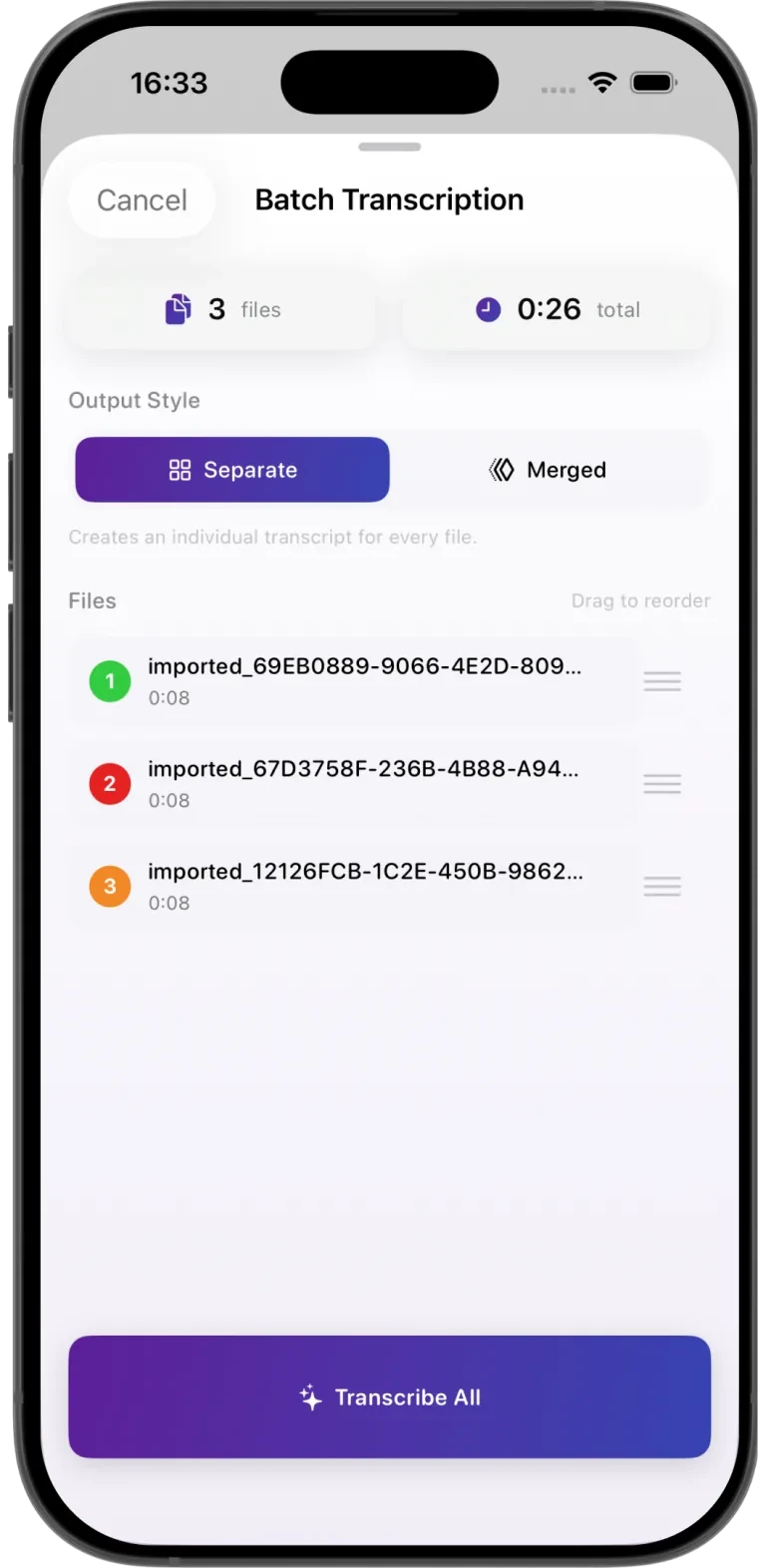
With Pro, you can select several files in the picker. A batch sheet shows the file count and total length, then lets you choose how to save the result.
| Output | What you get | Best for |
|---|---|---|
| Separate | One transcript per file | Unrelated notes or a folder of recordings |
| Merged | One transcript in the order you set | A talk, lecture or podcast recorded in parts |
Transcribe audio offline
Most transcription services upload your audio to a server. Transcribe AI includes its speech model in the app and runs it on your iPhone or iPad, so recording, importing local files, transcribing and editing all work in airplane mode. There is no language pack to download and no account to create.
- Useful on planes, trains and anywhere with poor signal.
- A good fit for interviews, client calls and private notes you would rather not upload.
- Saves roaming data, because large audio files never leave the phone.
Open the app once before you travel, because the first launch takes about twenty seconds to prepare the model. Files stored only in iCloud Drive must be downloaded to the device while you are online. For the wider trade-offs, read on-device vs cloud transcription.
Voice Memos transcripts or a dedicated app?
Voice Memos can show a transcript on iPhone 12 or later in the languages Apple supports. For a quick note to yourself, that may be all you need. A dedicated app helps when you need more languages, want to import audio from elsewhere or want to keep transcripts organized.
| You want to | Voice Memos | Transcribe AI |
|---|---|---|
| Read a quick transcript of a memo | Yes | Yes, after saving it to Files |
| Use a language Apple does not support | No | Yes, if it is among the 99+ languages |
| Transcribe an MP3 or WAV file | No | Yes |
| Keep transcripts in folders and search them | Not as a transcript library | Yes |
| Save the transcript as a TXT file | Copy the text first | Yes |
See how the main options compare in our guide to the best transcription apps for iPhone.
How long transcription takes
| Audio length | Approximate time on many iPhones |
|---|---|
| 30 seconds | Seconds |
| 10 minutes | About 10 to 12 minutes |
| 1 hour (Pro) | About an hour |
The app estimates about 1.2 times the length of the audio, and newer iPhones can be faster. Keep the app open until it finishes.
Edit and export your transcript
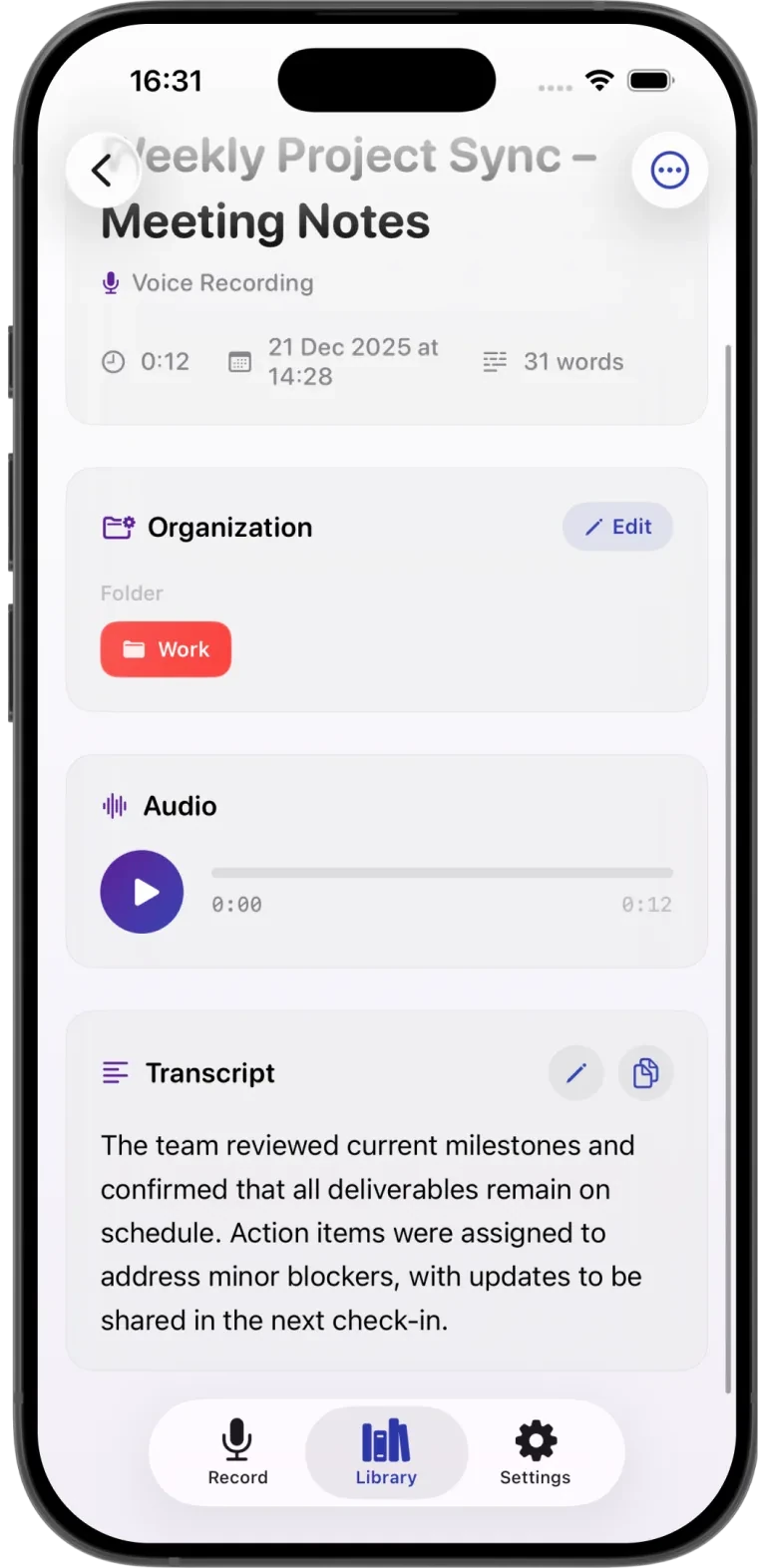
Open a transcript from the library and tap the pencil to edit it. The audio player sits above the text and plays from 0.75x to 2x, so you can skim quickly and slow down for names.
| Option | Use it when |
|---|---|
| Copy | Pasting into Notes, Messages or an email |
| Share | Sending the text straight to another app |
| TXT | You need a plain text file for a document or wiki |
| PDF (Pro) | You want a tidy document to keep, print or attach |
Free version limits
| Feature | Free version | Pro |
|---|---|---|
| Transcriptions | 15 in total, up to 5 a day | Unlimited |
| Length per file | Up to 15 minutes | No limit |
| Batch import | No | Yes |
| PDF export | No | Yes |
| Offline, languages, editing, folders, TXT | Yes | Yes |
Get a cleaner transcript
- Keep the bottom of the iPhone, where the main microphone is, close to the speaker.
- Record away from fans, traffic and music. Steady noise costs more accuracy than an accent does.
- Take turns speaking, because overlapping voices are hard to separate.
- For mixed-language audio, choose the language spoken most.
- Say unusual names clearly, then check them while editing.
Troubleshooting
| Problem | Fix |
|---|---|
| Save to Files is missing in Voice Memos | Use the Share button on the memo, then choose Save to Files. |
| The file does not appear in the picker | Check the folder you saved it to, or look in Recents. |
| The file will not import | Export it as M4A or MP3, then try again. |
| Text is in the wrong language or script | Set the language pill to the language spoken and transcribe again. |
| Words are missing in quiet parts | The speaker was probably too far from the phone. Record closer next time. |
Questions
How do I transcribe audio to text on iPhone?
Open Transcribe AI, choose the spoken language, then record or import an MP3, WAV or M4A file. The app creates editable text on the device.
Can I transcribe a voice memo on iPhone?
Yes. Save the memo to Files from Voice Memos, then import it into Transcribe AI with Upload Audio File.
How do I convert an MP3 to text on iPhone?
Save the MP3 to Files, open Transcribe AI, choose the language, tap Upload Audio File and select it.
Can I transcribe audio on iPhone without internet?
Yes. Transcribe AI runs on the device, so it works in airplane mode once the app is installed.
Is my audio uploaded?
No. Recording, transcription and storage happen on your iPhone or iPad, and there is no account.
Is there a file length limit?
The free version transcribes files up to 15 minutes. Pro removes that limit.
Can I transcribe several audio files at once?
Yes, with Pro. Select them together and choose separate transcripts or one merged transcript.
Can I transcribe a video?
Not directly. Export the video's audio as M4A or MP3, then import that file.
Will the transcript include timestamps or speaker names?
No. You get one continuous block of editable text.